

Post-upgrade setup
Can You Use Two Apple Watches With One iPhone? A Smart Post-Upgrade Setup
A practical way to keep your previous Watch useful after an upgrade.
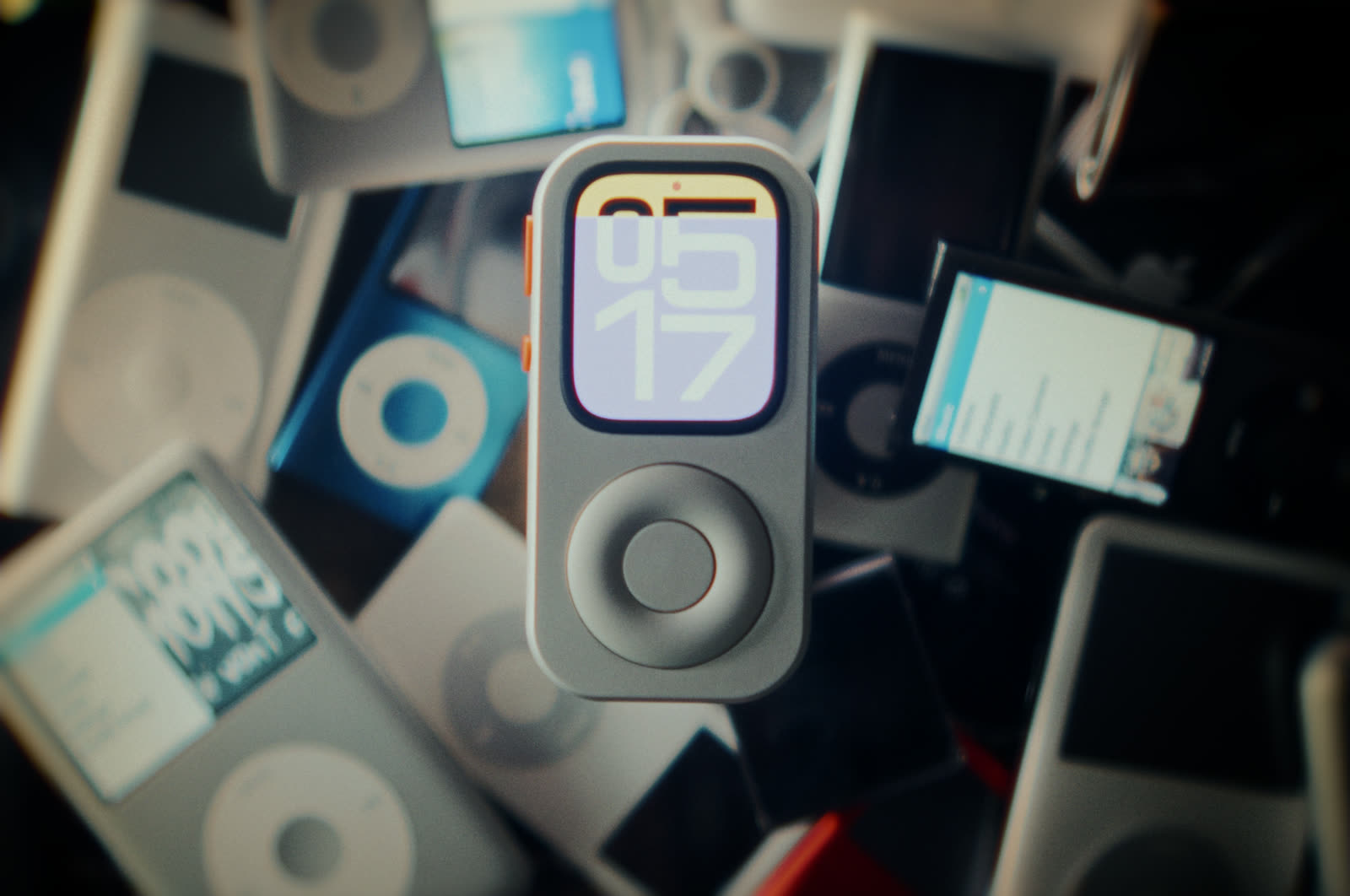
Yes. Apple lets you pair more than one Apple Watch with a single iPhone, then switch the active Watch automatically when you put one on or manually in the Watch app. Each Watch keeps its own settings and apps. This makes a new Watch your everyday wearable while the previous one takes on a focused second role.
How two Watches share one iPhone
Apple treats each Watch as a separate device inside the Watch app. You add the second Watch through My Watch → All Watches → Add Watch, complete its pairing, and choose whether Auto Switch should identify the Watch on your wrist. A manual switch remains available in the same screen.
The arrangement is especially useful after an upgrade. Your new Watch can hold the wrist-based routine you bought it for. The previous Watch can become a desk controller, a music player, a bedside clock, a kitchen timer, or a handheld device for short tasks. Both remain tied to one familiar iPhone account and management screen.
Check this before you begin
Each Watch must be compatible with the iPhone and iOS version you use. Apple’s support guide also notes that watchOS updates can be required during pairing. A Watch prepared for another person follows a different process: erase it, remove Activation Lock, and set it up under the intended owner or through Apple Watch For Your Kids when the requirements are met.
| Device | Good primary role | Preparation |
|---|---|---|
| New Watch | Daily wearable, current notifications, workouts and wrist-based features | Pair first, restore the settings you want, and confirm your preferred cellular plan where applicable. |
| Previous Watch | Music, timers, navigation preview, camera control, Apple TV control, smart-home scenes or a bedside clock | Remove distracting apps, choose a simple face, prepare offline media where supported, and keep charging convenient. |
| Previous Watch in RePod | Handheld access to the same compatible Watch functions | Confirm the exact Watch generation and case size appears in the current RePod selector. RePod supplies the physical case; the Watch supplies every digital function. |
Give the previous Watch one clear job
A second device earns its place through clarity. Pick the situation where reaching for your phone feels excessive, then shape the old Watch around that moment. A focused setup feels faster because the app grid, complications and notifications all serve one small routine.
Keep playlists or albums ready and pair supported Bluetooth headphones. Offline availability depends on the service, subscription, Watch storage and completed downloads.
Place favorite Home scenes within easy reach. Access depends on compatible accessories, the Home configuration and available network connections.
Use Apple’s Camera Remote to frame a shot, set a timer and trigger the paired iPhone camera while it sits on a tripod or shelf.
Use timers, reminders, Now Playing controls and a quiet clock face without opening the full phone screen.
Keep the role narrow for the first week. A music-and-timer device is easy to understand. A device loaded with every alert, social notification and complication quickly recreates the same attention problem you may have hoped to avoid.
Set up two Apple Watches step by step
- Update and charge. Update the iPhone to a compatible iOS release, charge both Watches, and keep Wi-Fi and Bluetooth available for pairing.
- Open the Watch list. On the iPhone, open the Watch app, tap My Watch, tap All Watches, then choose Add Watch.
- Pair the second Watch. Follow Apple’s on-screen pairing flow. Restore from a suitable backup or configure the Watch as new, depending on the role you want.
- Name the roles in your mind. Use different faces, colors and complications so the daily Watch and the focused Watch are immediately recognizable.
- Choose switching behavior. Leave Auto Switch on if you regularly wear both Watches at different times. Select a Watch manually in All Watches when the second one lives off-wrist.
- Test the second role. Open the apps, media and controls you expect to use. Confirm the required iPhone, Wi-Fi, cellular plan or downloaded content is available in the real setting.
What stays separate, and what still depends on the iPhone
Pairing two Watches does not combine them into one synchronized screen. Each Watch keeps its own face, app layout, notification choices and local content. Some account data syncs through Apple services, while device-specific settings remain distinct. Changes can take time to reach both devices.
Connectivity also varies by Watch model and situation. A GPS model can use its paired iPhone nearby, known Wi-Fi networks and prepared offline content. A cellular model can use an eligible carrier plan and coverage for supported features. Apple notes that some messaging and third-party notification behavior still depends on the paired iPhone being powered on and connected to Wi-Fi or cellular service, even when it is elsewhere.
A Watch kept in a drawer may need charging, an update and a fresh pairing before it becomes reliable again. Inspect the battery condition and display, clean the device, and test its buttons, Digital Crown, speaker and microphone. Apple provides service routes for battery or hardware concerns.
Your post-upgrade checklist
- Confirm both Watches are compatible with the same iPhone and current iOS.
- Decide which Watch owns daily wrist duties.
- Give the previous Watch one focused off-wrist role.
- Remove alerts and apps that work against that role.
- Prepare Wi-Fi, cellular service or offline downloads as the role requires.
- Set a predictable charging place.
- Test switching and the chosen routine before relying on it.
- Match the exact Watch generation and case size before considering RePod.
Frequently asked questions
How many Apple Watches can I pair with one iPhone?
Apple says you can pair more than one Apple Watch with an iPhone. The practical number depends on compatible hardware, available storage, setup time and how many devices you can keep updated and charged. Apple does not present the feature as a way to use several Watches simultaneously.
Can both Watches receive notifications at the same time?
The Watch you are actively using is the relevant device for many wrist notifications. Delivery behavior varies with wrist detection, notification settings, connectivity and whether the paired iPhone is locked or in use. Test the specific alerts you care about on both Watches.
Does Auto Switch work when the old Watch is off my wrist?
Auto Switch is designed to detect the Watch you put on. A Watch used as a handheld or desk device may be easier to select manually from the Watch app. Wrist-dependent features can behave differently when the sensors are away from skin.
Can RePod add cellular service or battery life to my old Watch?
No. RePod is a physical case for listed compatible Apple Watch models. It does not add a modem, cellular plan, battery capacity, storage, apps or watchOS features. The installed Watch and its current setup determine what the device can do.
A two-Watch setup gives an upgrade a cleaner ending: the new device takes the lead, and the previous device gets a smaller, more deliberate job. Start with one routine, live with it for a week, and refine the app and notification choices around what you actually use. Label the chargers if the models use different accessories, and revisit both devices monthly so updates, downloads and account prompts never surprise you when the second Watch is needed.
Sources
Read the official details
A second role for the previous Watch
Turn one focused routine into a handheld setup.
After the core two-Watch setup works, compare your previous Apple Watch generation and case size with the current RePod selector.