

A second life for the Watch you own
Your Apple Watch Can Do More Than Live on Your Wrist
A practical guide to giving a compatible Watch a handheld role after an upgrade.
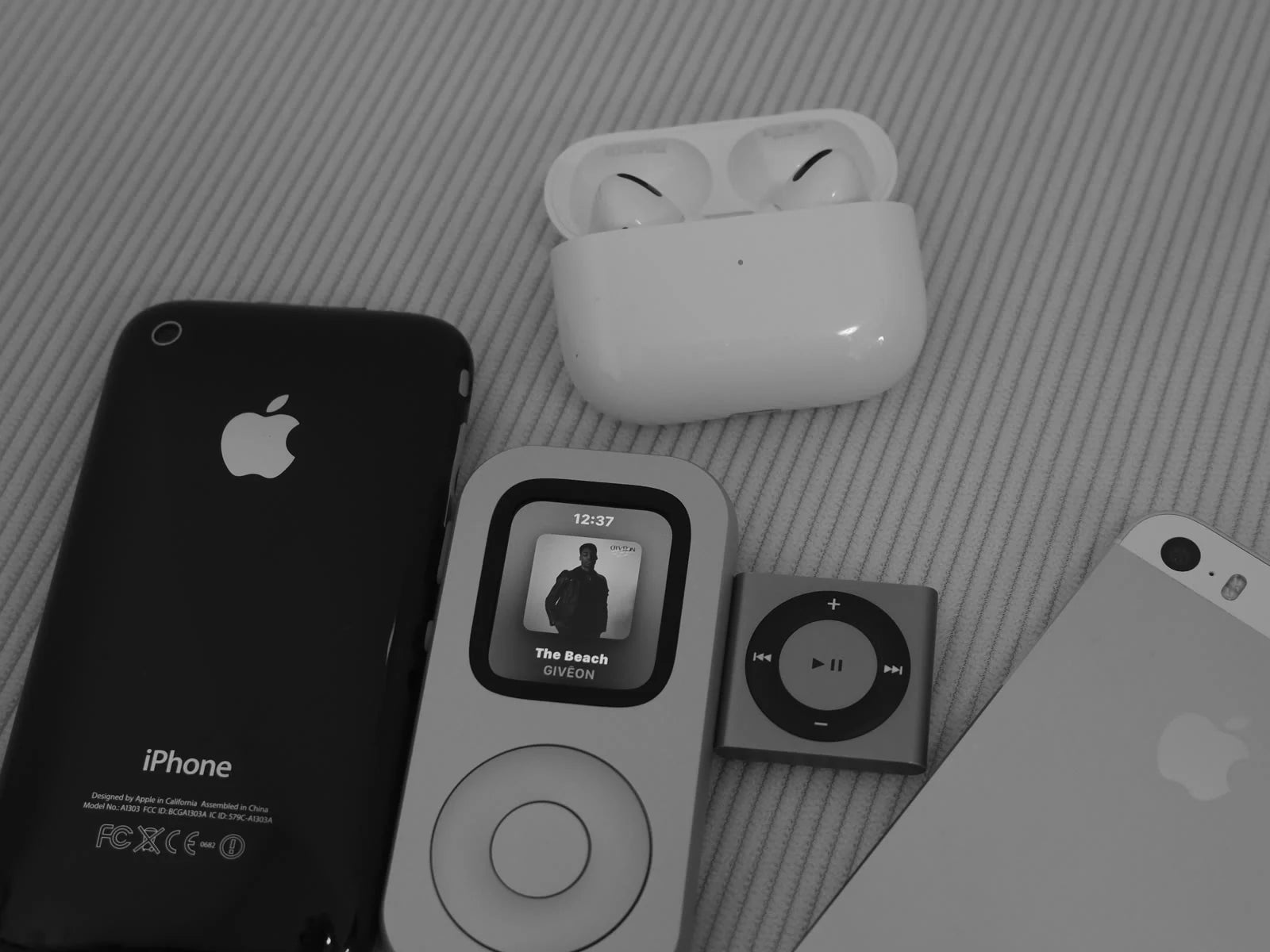
An Apple Watch does not become useless when a newer one takes its place. If the battery, screen and controls still serve you, the more interesting question is simple: what single job could it do next?
Wake up the Watch in your drawer
Start with the hardware you already have. Charge the Watch, check its screen and crown, install the latest software it supports, and open the apps you would actually use. Then confirm the exact generation and case size. RePod houses selected Apple Watch models in an iPod-inspired handheld form, while Apple Watch continues to provide the display, computing, apps and services. The current compatibility selector is on the RePod product page ↗.
Match the role to the Watch in front of you. A Watch with a tired battery may still suit a short listening session at home. A cellular model may have different away-from-phone options from a GPS-only model. Choose one role that fits its condition and your routine.

Choose one useful job
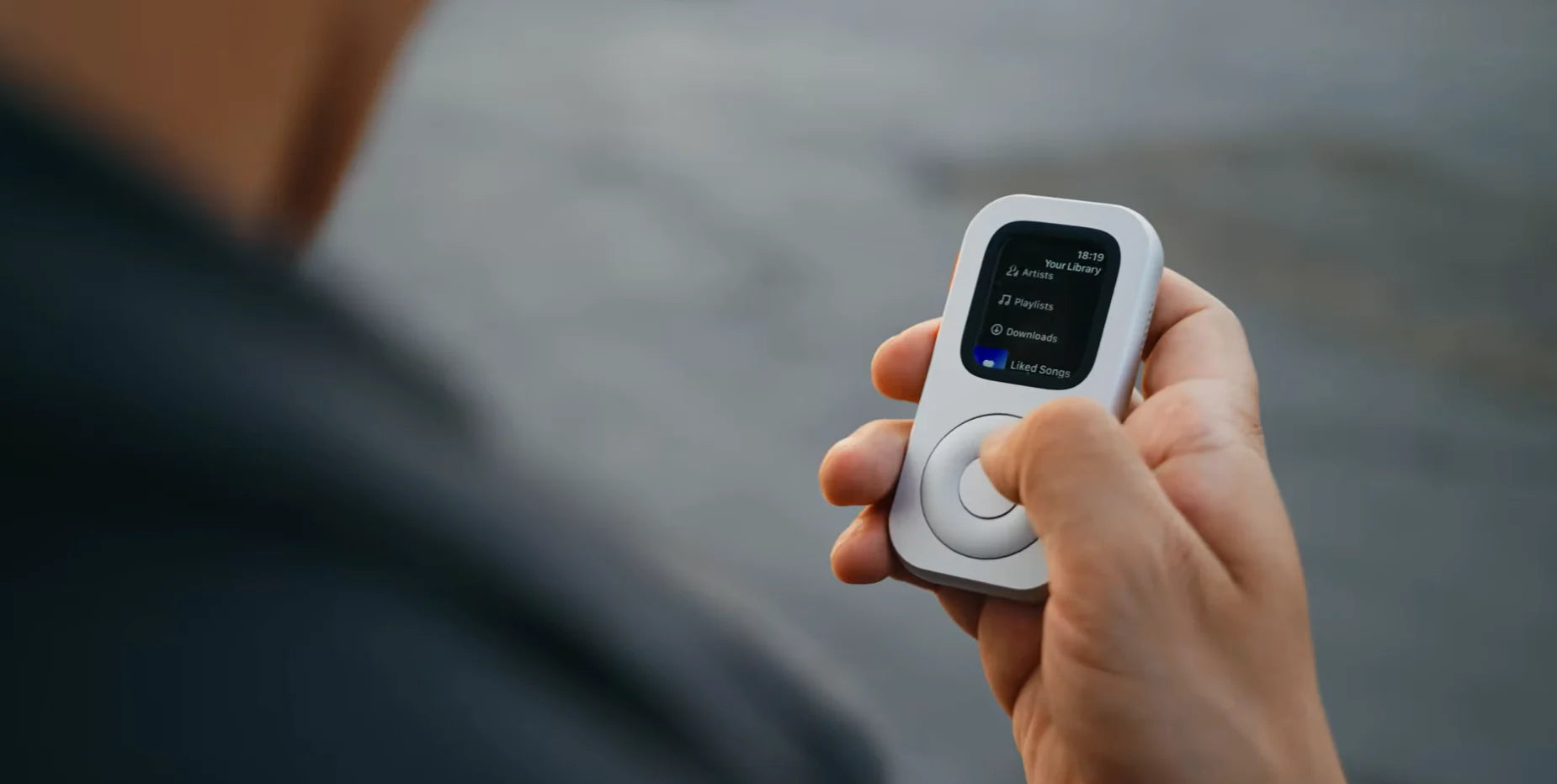
A prepared Apple Watch can cover a surprisingly focused set of tasks. Apple says downloaded music and podcasts can play when the paired iPhone is not nearby, and eligible cards in Apple Pay can remain available after setup. Downloads, storage, apps, subscriptions, supported cards, country or region, Watch model and account requirements all apply. Check Apple’s current away-from-iPhone guide ↗ and music download steps ↗ for your setup.
That opens several sensible second-life roles: a pocket music player for one album, a compact route companion for a familiar walk, a camera remote for group photos, or a small home-control device that lives near the sofa. Pick the role that would make you reach for the Watch on purpose.
Navigation deserves its own preparation step. Apple Watch can provide directions, and supported setups can sync a selected offline map area from the paired iPhone. Directions, transport modes and coverage vary by location; an offline map covers only the region you downloaded and still depends on compatible software. Open the route on the Watch before leaving, zoom through the critical turns and keep an alternative way home. Apple’s directions guide ↗ and offline maps guide ↗ explain the current options.

Know what the Watch needs
Apple Watch behaves differently when content is downloaded, a network is available or the paired iPhone remains online. Check the mode your routine needs before leaving home.
Downloaded audio and eligible cards in Apple Pay can work after the required setup. Offline map coverage is limited to areas downloaded from a paired iPhone on supported software. Storage, app, subscription, card, region and device conditions apply.
Calls, messages, live data and some apps depend on a supported network. Carrier plan, Wi-Fi availability, app support and the specific Watch model affect what is available.
SMS/MMS and some third-party notifications can still require the paired iPhone to be powered on and connected, even when it is elsewhere. Confirm the current details in Apple’s support guide.
Three roles people overlook
Camera remote: Apple Watch can frame a shot and trigger the paired iPhone camera within normal Bluetooth range—about 33 feet or 10 meters, with actual range varying by conditions. See Apple’s Camera Remote guide ↗
Home controls: Set-up Home accessories can be controlled where the Home app, accessory, network and home-hub requirements are met. Check Home requirements ↗
Apple TV remote: A paired Apple TV 4K can be controlled from Apple Watch under Apple’s device and network requirements. See the Remote guide ↗
A 10-minute setup
- Identify the Watch.
Open the Watch app or check the case details, then match generation and size to the live RePod selector. - Choose the job.
Write one sentence: “This Watch is now my device for ___.” Keep the first test narrow. - Prepare what must be local.
Download the album, playlist or map area you need and confirm it opens on the Watch. - Check the connection.
Decide whether your routine relies on offline preparation, Wi-Fi, cellular service or a paired iPhone that stays online. - Run a short test.
Try the routine near home before depending on it for travel, payment, navigation or urgent communication.
What RePod changes
RePod changes how a compatible Apple Watch is held and encountered. It turns a wrist-size interface into a pocket object with a thumb-led wheel form. Apple Watch, watchOS and the services you configure continue to provide the computing, connectivity and apps.
A device sitting in a drawer has no role. A device prepared for one repeatable job has a reason to be charged, carried and used. Start with the Watch you own, give it one job, and let the routine decide whether it earns a place in your pocket.
Sources and setup references
START WITH YOUR WATCH