

Focused listening
How to Use an Old Apple Watch as a Dedicated Music Player
Build a small listening device around albums, playlists and the headphones you already use.
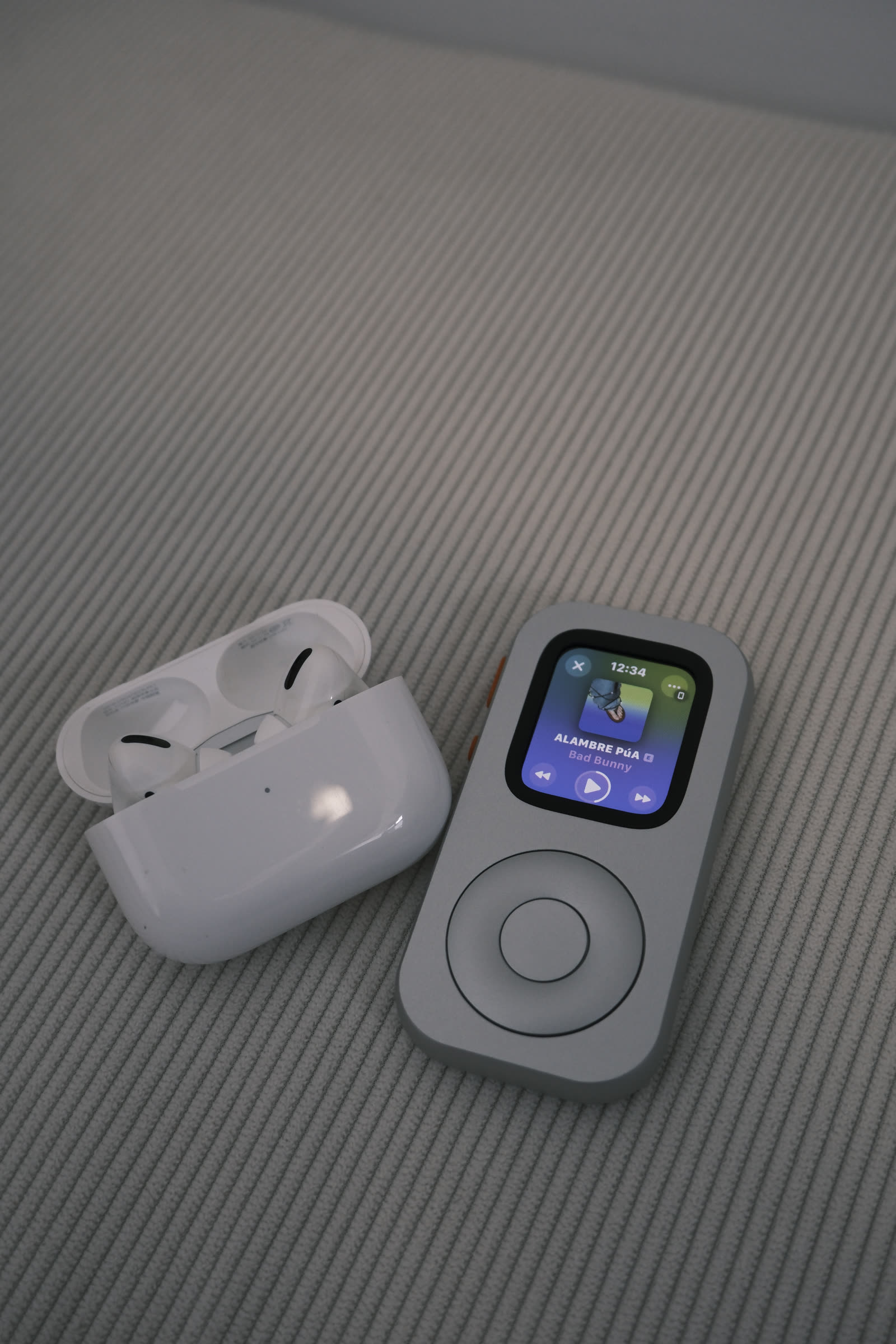
An old Apple Watch can become a focused music player by pairing Bluetooth headphones, syncing or downloading selected music, simplifying its app layout, and giving it a regular charging place. Offline playback depends on the Watch model, available storage, music service, subscription and completed downloads. Test the full setup before taking it away from your iPhone.
Choose the kind of music player you want
The best setup begins with a constraint. Decide whether this Watch will hold a few favorite albums, a running playlist, a commute mix, podcasts, or a rotating weekly selection. A small library is easier to navigate on the Watch screen and gives each listening session a clear starting point.
Apple’s Music app can sync music from the paired iPhone, and supported subscriptions can make downloads available directly through Apple Music. Other services may offer their own Apple Watch apps and offline features. Their catalogs, subscription requirements, download limits and region support differ, so follow the instructions for the service you actually use.
| Setup | Best for | What it needs |
|---|---|---|
| Synced library | Albums and playlists already managed on the paired iPhone | Music added through the Watch app, enough Watch storage, charging time for sync, and Bluetooth headphones or a speaker. |
| Subscription downloads | A rotating selection from a supported streaming service | An eligible subscription, the service’s Watch app, completed downloads, enough storage, and periodic connectivity for account checks or updates. |
| Connected streaming | On-demand listening when a network is available | A supported service plus Wi-Fi, the nearby paired iPhone, or an eligible cellular Watch with an active plan and coverage. |
What “dedicated” means here
The Watch still runs watchOS and retains the capabilities, limits and account requirements of an Apple Watch. The dedicated feeling comes from the way you prepare it: fewer apps, fewer alerts, a small music library and a physical place in your day.
Prepare an old Watch for listening
- Inspect and update it. Charge the Watch, confirm that the screen, Digital Crown, speaker and buttons work, and install a compatible watchOS update if one is available.
- Pair it with your iPhone. Use the Watch app and follow Apple’s pairing flow. An iPhone can manage more than one compatible Watch, which helps when a newer model remains your daily wearable.
- Clear visual noise. Choose a simple face with music, battery and timer complications. Move the music app and Now Playing control to easy-to-reach positions.
- Trim notifications. Turn off alerts that have no place in a listening session. Keep only the messages or reminders that genuinely matter in the situation where you will use the device.
- Pair your headphones. Put Bluetooth headphones in pairing mode, then connect them through the Watch’s Bluetooth settings. Confirm volume controls and playback before downloading a large library.
Battery condition shapes the experience. Short listening sessions may be comfortable on a Watch that no longer lasts through a full day on the wrist. Longer walks or travel demand a healthier battery and a more disciplined charging routine. Apple provides battery health information on supported models and service options when capacity has declined.
Add a small, reliable offline library
For Apple Music or music stored in the iPhone’s library, open the Watch app on the iPhone, choose Music, then add the albums and playlists you want. Apple explains that the Watch should be near the iPhone while music is added. Connecting the Watch to power can preserve battery during a long transfer, although it is an optional preparation step. Leave both devices together until the transfer finishes.
For a supported third-party service, use its current Apple Watch instructions. Look for an explicit download control and a visible completion state. A playlist appearing in the app does not always mean its audio is stored locally. Put the iPhone in Airplane Mode or leave it out of Bluetooth range, then play several tracks to verify the offline copy.
Offline playback test
- The desired albums or playlists show a completed download state.
- Bluetooth headphones reconnect after the Watch restarts.
- Playback begins with the iPhone unavailable.
- Several tracks play from beginning to end.
- Volume and transport controls work from the Watch.
- The battery comfortably covers the planned session.
- A charger is ready at the device’s regular storage place.
Keep storage headroom for watchOS and apps. A giant library creates longer sync times and more navigation. A compact selection—perhaps three albums, one discovery playlist and one dependable mix—makes the device feel more like a personal music object and less like a miniature catalog.
Make the device part of your listening routine
Dedicated music players are appealing because they create a boundary around listening. Recent reporting on the renewed interest in iPods and other single-purpose players points to tactile controls, owned libraries, nostalgia and relief from an always-changing phone feed. An Apple Watch offers a contemporary version of that boundary when you choose the library before the session begins.
Pick a recurring moment: a thirty-minute walk, an album after dinner, a train ride, or an hour at a desk. Charge the Watch in the same place. Refresh the library on a predictable day. Put the paired headphones beside it. Friction falls when every part of the setup has a home.
A handheld case can make the role more legible. RePod houses listed compatible Apple Watch models in a compact form with a scroll-wheel-inspired exterior. It changes how the Watch is held; it does not add storage, battery capacity, a headphone jack, cellular service, software or music access. The installed Watch and music service remain responsible for playback.
Choose one album, download it completely, silence unrelated alerts, and listen from the opening track through the final one.
Prepare music, route, emergency contact plan and connectivity in advance. Capabilities away from the iPhone vary by Watch and network conditions.
Pair a compatible Bluetooth speaker and keep a small household playlist ready. Connection range and speaker controls vary.
Replace one album or playlist every week while keeping a few permanent favorites. The library stays intentional and easy to browse.
Frequently asked questions
Can an Apple Watch play music without an iPhone nearby?
Yes, when the audio has been downloaded to the Watch and compatible Bluetooth headphones or a speaker are connected. Supported streaming can also work over Wi-Fi or cellular on eligible models and plans. Service, subscription, region, storage, plan and coverage conditions apply.
Can I use Spotify, Apple Music or another service?
Apple Music supports Watch syncing and downloads under Apple’s current rules. Some third-party services provide their own watchOS apps and offline features. Check the current app listing and subscription requirements because availability can change by service and region.
Does Apple Watch play music through its built-in speaker?
Music listening is designed around compatible Bluetooth headphones or speakers on many Watch generations and software versions. Apple’s current hardware and software documentation should guide your specific model. Pair and test the intended audio output before relying on it.
Will RePod improve sound quality or battery life?
No. RePod is a physical case. Sound quality comes from the Watch, the audio file or service, and the connected headphones or speaker. Battery endurance comes from the installed Watch, its condition, settings and network use.
A dedicated player works when preparation replaces browsing. Choose a small library, verify it offline, simplify the interface and give the device a reliable charging home. Your old Watch gains a useful second life, and listening gets a clear beginning and end.
Sources
Music setup references
A physical home for the listening setup
Make a compatible Watch feel like a pocket music player.
Build the library and test playback first. Then match the exact Watch generation and case size with the current RePod selector.