

Apple Watch music checklist
The Five-Minute Apple Watch Music Preflight
Check the download, headphones, battery, and connection state before the phone stays in your bag.

Before a phone-light music session, confirm five things on Apple Watch: the exact album or playlist has finished downloading, AirPods connect directly, playback continues when the iPhone is unavailable, the Watch has enough battery for your planned time, and your fallback matches the route. Five minutes turns assumptions into a tested setup.
A playlist can look ready at home and fail at the first corner. The title is visible. The headphones seem paired. The opening track begins while the iPhone is nearby. Then the connection changes and the session stops.
The failure usually comes from one untested handoff. Music was added to the library without finishing its download. AirPods stayed connected to the phone. A cellular stream depended on coverage. The battery check happened after leaving. Each problem is small, and each is easier to catch while you are still near a charger and a known network.
This preflight owns the final five minutes. For the complete process of turning an older Watch into a dedicated player, including broader setup decisions, use Techpod’s full Apple Watch music-player guide.
Separate local playback from connected playback
Apple documents two useful states. Downloaded audio can remain available on Apple Watch away from the paired iPhone. Connected features vary with the Watch model, Wi-Fi, a cellular plan, coverage, app support, subscription, setup, and region. Those states can feel identical while the phone and home network are close.
Decide which state your session needs. A walk through reliable coverage may use streaming on a supported cellular setup. A subway platform, trail, flight, or basement gym may call for completed downloads. The choice belongs to the route, the exact Watch, and the service you use.
Confirm the item has finished downloading to Apple Watch. App, subscription, storage, software, region, and device rules apply.
Model, plan, coverage, Wi-Fi, service, app, subscription, setup, and regional conditions can affect playback.
The five-minute preflight
| Minute | Check | Pass signal | If it fails |
|---|---|---|---|
| 1 | Open the exact album or playlist on Apple Watch. | The app shows a completed download when offline playback is required. | Return to power and Wi-Fi, then allow the download to finish. |
| 2 | Select AirPods from Apple Watch and play a track. | Audio starts from the Watch at a comfortable volume. | Reconnect the headphones and confirm the output device. |
| 3 | Make the iPhone unavailable and play three tracks. | Playback starts, skips, and resumes from the Watch. | Check download or connectivity state before leaving. |
| 4 | Compare battery level with the planned session. | You are comfortable with the available charge and route. | Charge, shorten the session, or carry the phone. |
| 5 | Name the boundary and fallback. | You know where the phone stays and how to regain access if needed. | Keep the phone close and treat this session as another test. |
Minute 1: prove the download
Apple’s current guide to adding music to Apple Watch distinguishes having music in your library from having the audio downloaded to the device. Open the Watch app you plan to use and look for its completed-download state. Service interfaces differ, so use that app’s current label rather than assuming a cloud icon means the same thing everywhere.
Open the precise record or playlist. A general “downloads” screen can hide one missing track or an incomplete album. If the session depends on continuity, sample the beginning, middle, and final third. This catches a partial transfer before it becomes the moment the walk goes quiet.
Minute 2: connect AirPods to the Watch
Apple’s AirPods guide explains direct Apple Watch pairing and selection. Compatible hardware and current software are required. Open the Watch’s audio output controls, choose the AirPods, and begin a track from the Watch.
Listen for ten seconds, pause from the Watch, and resume. Set the volume while you are in a quiet place, then leave room for a louder environment. The useful result is a connection you have operated from the device you will carry.
Minute 3: make the iPhone unavailable
Put the iPhone in another room, switch it off briefly, or use another method that clearly removes it from the test. Then start a track, skip forward, return to the previous track, pause, and resume. Three different tracks provide a stronger check than letting one cached track continue.
Apple’s phone-away guide explains how connection state affects available features. Downloaded audio remains the simplest proof for a music-only session. Streaming and connected actions depend on the specific Watch, network, cellular plan, coverage, setup, app, subscription, and region.
Minutes 4 and 5: match the plan to the day
A battery percentage becomes useful when it is compared with a real session. Consider the length of the album, time away, headphone charge, temperature, age of the Watch, and whether connected features will be active. This checklist makes no runtime promise. Your own tested device and comfort level set the boundary.
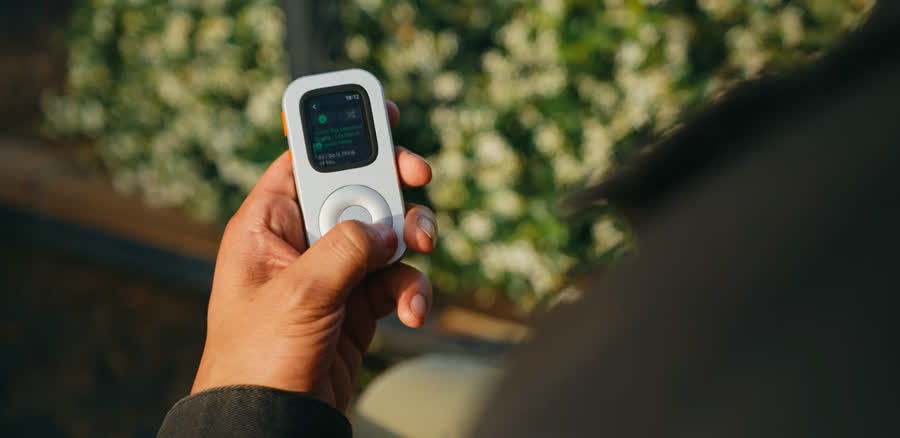
Then choose the phone rule. It can stay zipped in a bag, remain on a desk, or come along as an emergency fallback. “Phone-light” describes a prepared routine with fewer reasons to handle the phone. It does not require universal phone independence.
Name one fallback before departure. If audio fails, you may continue the walk in silence, retrieve the phone, use a saved local option, or end the session. A fallback prevents troubleshooting from becoming the main event.
Keep the first test close to home and short enough to repeat. A familiar route makes any playback or battery issue easier to spot and correct.
Give the tested setup a physical home
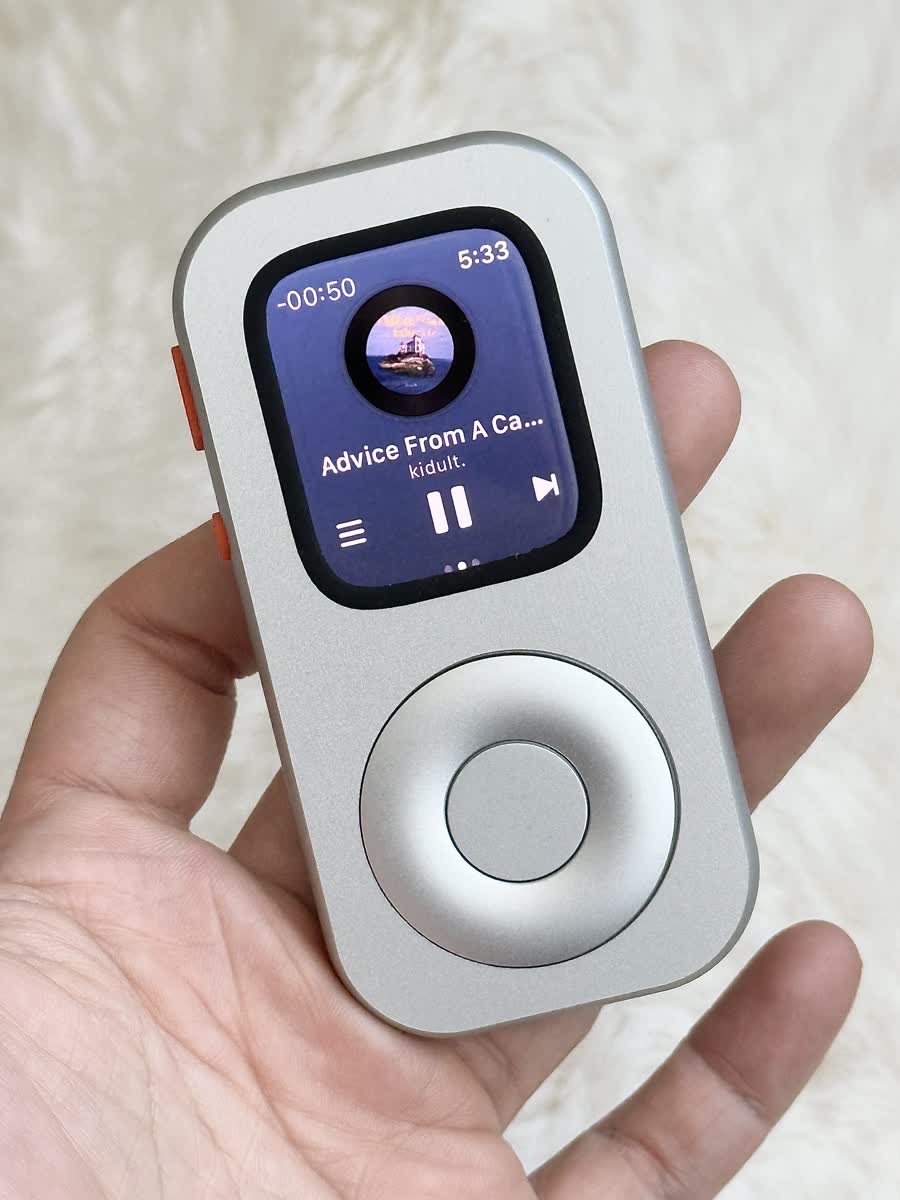
RePod houses listed compatible Apple Watch models in an iPod-inspired handheld form. The case does not add music, storage, battery capacity, cellular service, or software. Apple Watch and the service you use remain responsible for every playback and connection state you tested.
After the preflight passes, the handheld form gives the prepared Watch one clear job for the next hour: carry the chosen session. Check the current selector for the exact Apple Watch generation and case size before choosing RePod.
Keep the session focused
Once the five checks pass, stop changing settings. Choose the album or playlist, pocket the player, and begin. For the broader listening ritual, continue with One Album, Front to Back.
Apple Watch music preflight FAQ
How do I know music is downloaded to Apple Watch?
Check the completed-download state in the music app on Apple Watch, then make the iPhone unavailable and play several tracks. App, subscription, storage, software, region, and device requirements apply.
Can AirPods connect directly to Apple Watch?
Yes. Compatible AirPods can connect to Apple Watch. Current software and compatible hardware are required, and you should test the exact setup before departure.
Does cellular Apple Watch remove the need to download music?
Streaming may work under model, plan, coverage, app, subscription, setup, and region conditions. Downloads remain useful when a session should survive weak or unavailable service.
Does RePod change Apple Watch connectivity?
No. RePod changes the Watch’s physical form. Connectivity, apps, downloads, subscriptions, storage, and playback remain supplied by Apple Watch and its services.
Sources
Check the current setup guidance
-
Apple Support — Add music to Apple Watch
Albums, playlists, and download state. -
Apple Support — Use Apple Watch without its paired iPhone
Downloaded audio and connection-dependent functions. -
Apple Support — Pair AirPods with Apple Watch
Compatible pairing and output selection. -
Techpod — RePod C1
Current product form and compatibility selector.
Make the listening ritual tangible
Give a compatible Apple Watch a pocket music role.
RePod changes how the Watch is held. Music, downloads, subscriptions, storage, connectivity, and playback remain provided by Apple Watch and the service you use.